Setup the StreamTV App
After installing, launch the application to begin. Follow the steps below to get set up and start streaming on your device.
1Select your layout
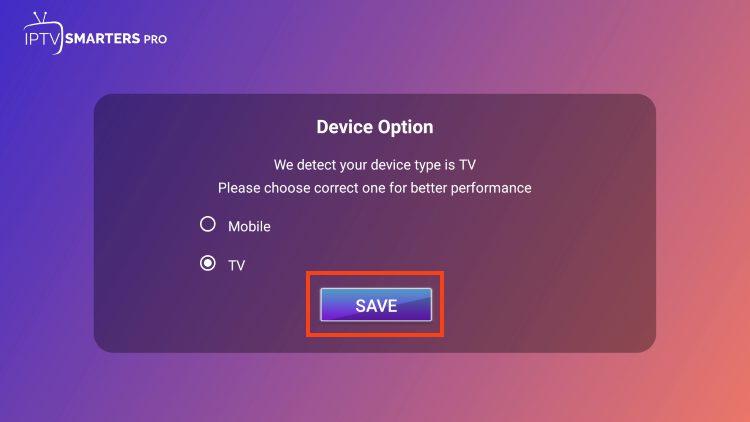
First, you are prompted to select your layout. If using a streaming device such as a Firestick or Android TV / Google TV box, select TV and click SAVE.
2Read the announcement & Accept
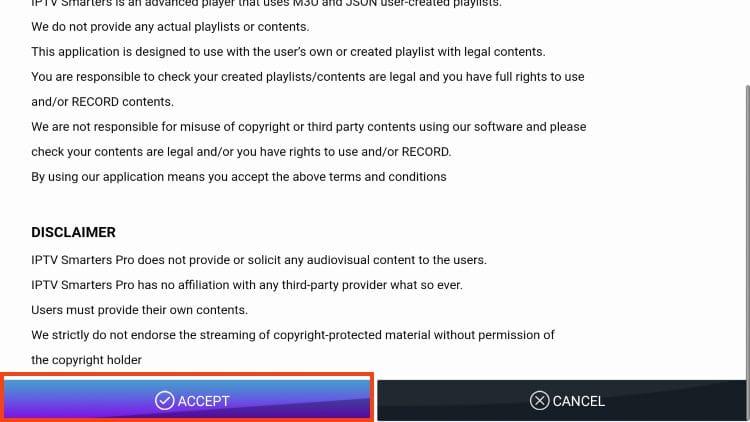
Make sure to read the new announcement from Smarters Pro noting that they do not provide any playlists or content, then click Accept.
3Choose Login with Xtream Codes API
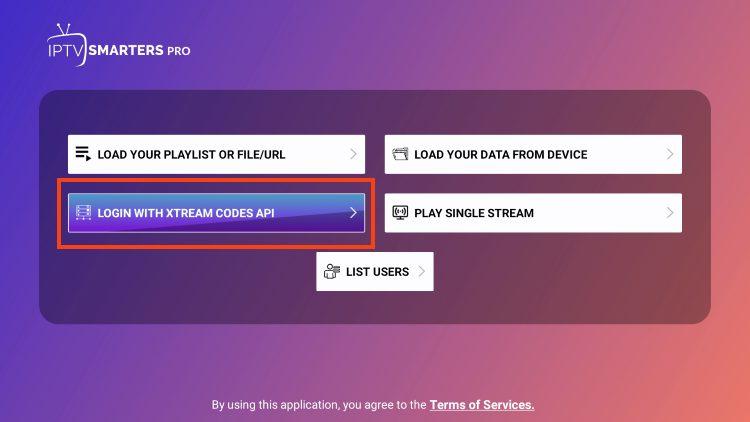
On the login menu, choose Login with Xtream Codes API.
4Enter your login details
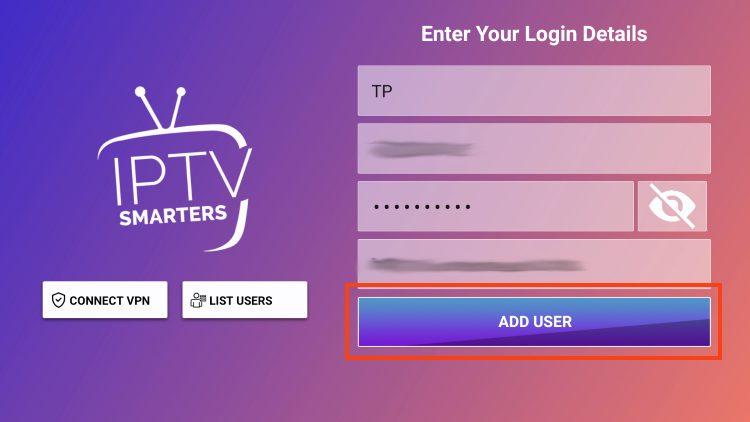
After confirmation of payment, you will receive your Login Details via email. Enter them on this screen, then click ADD USER.
5Wait for confirmation
Wait for the “User added successfully” message to appear. Your home screen will load with Live TV, Movies and Series.
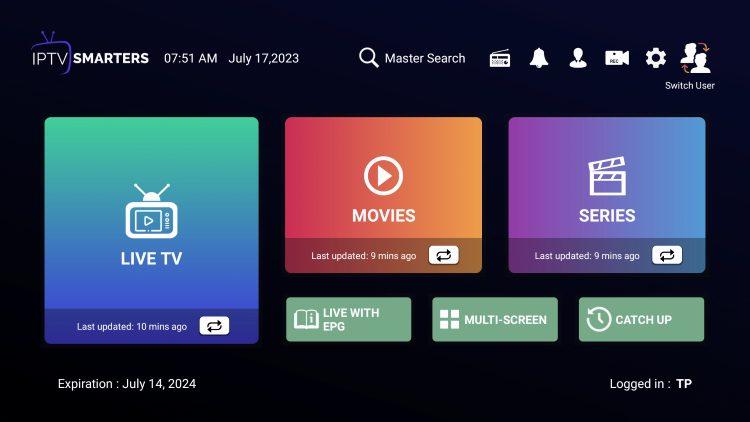
Congratulations!
You can now access your content for live streaming and more.